Add one reference image before generating.
Turn This Picture Into a Full-Body Image
Upload a headshot or cropped portrait and turn it into a full-body image.
- Paid plans: no watermark, commercial use
- Pay once, Credits never expire
Turn Cropped Portraits Into Full-Body Images
Start with a clear headshot or cropped portrait. A visible face, clothing, and pose give AI a better starting point for a natural full-body result.
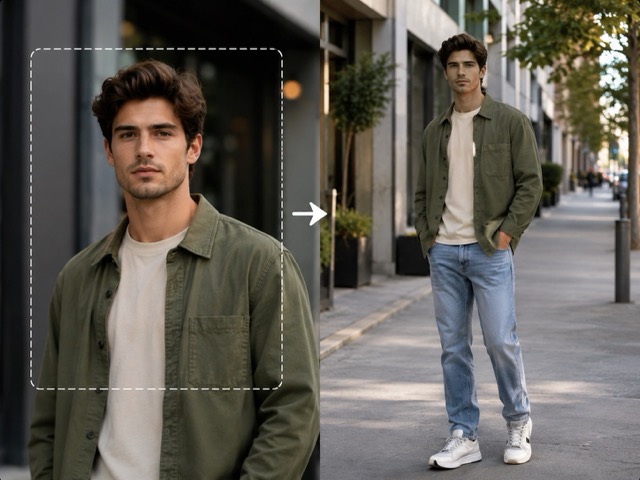
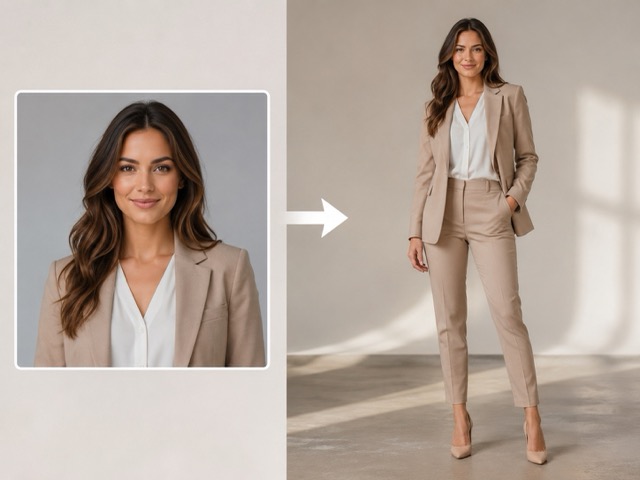
Headshots
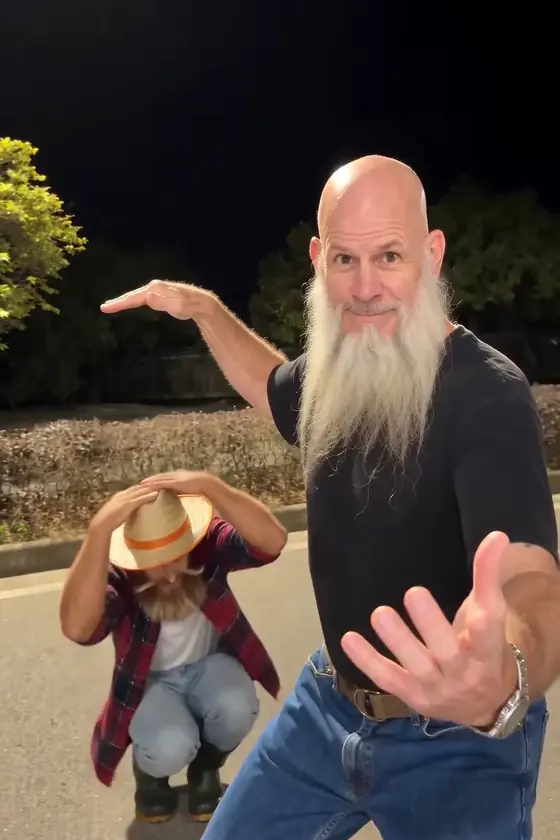
Turn a close portrait into a wider standing image.
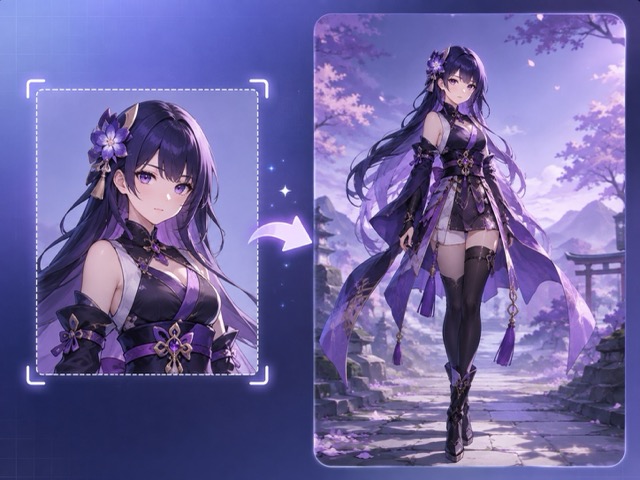
Characters
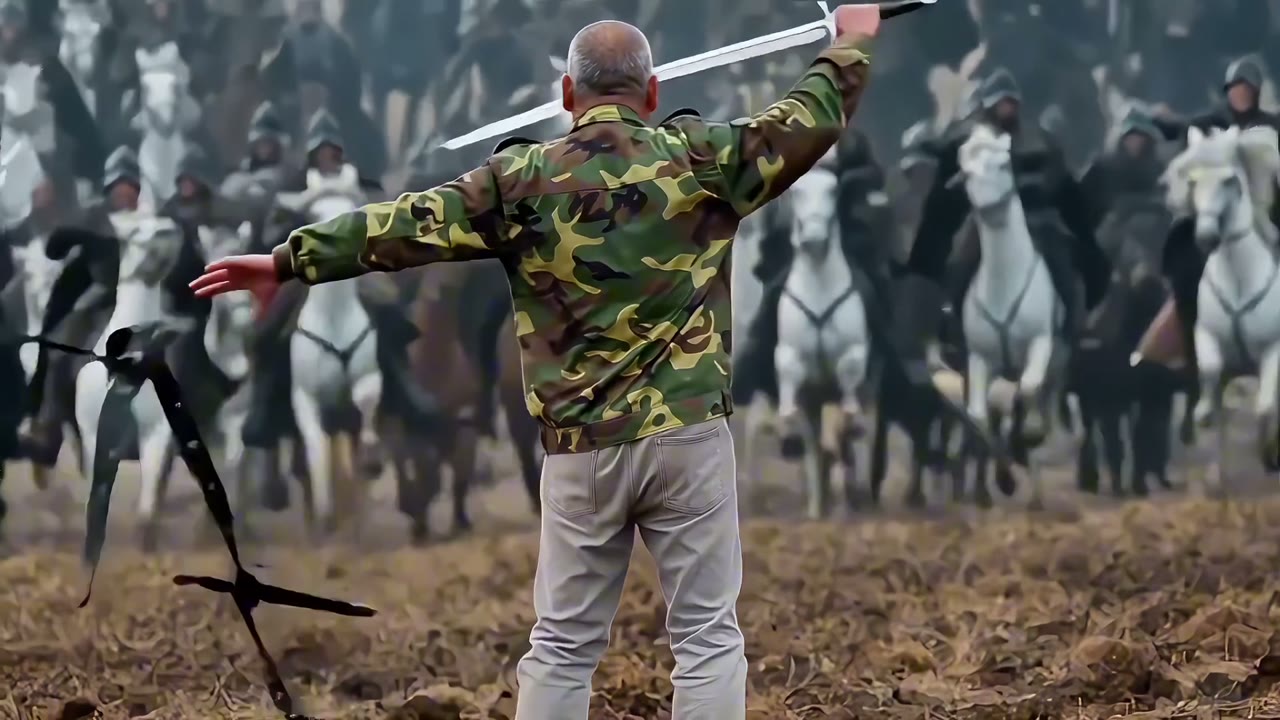
Extend cropped illustrations or character portraits into complete figures.
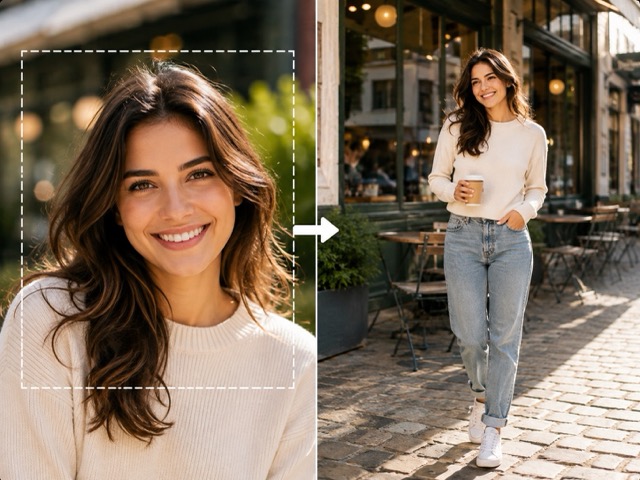
Half-body portraits
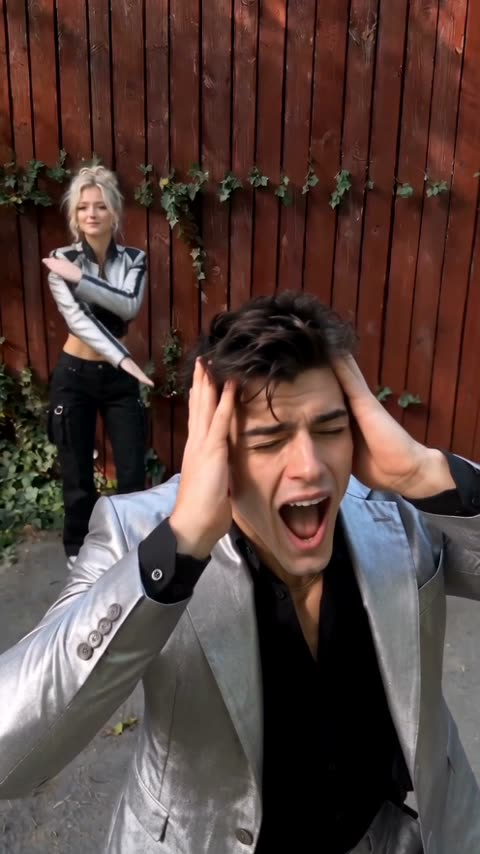
Extend chest-up or waist-up photos when you need the complete person.
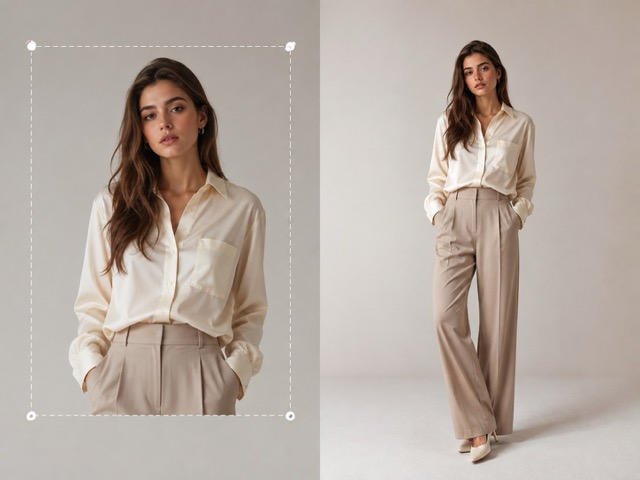
Fashion portraits
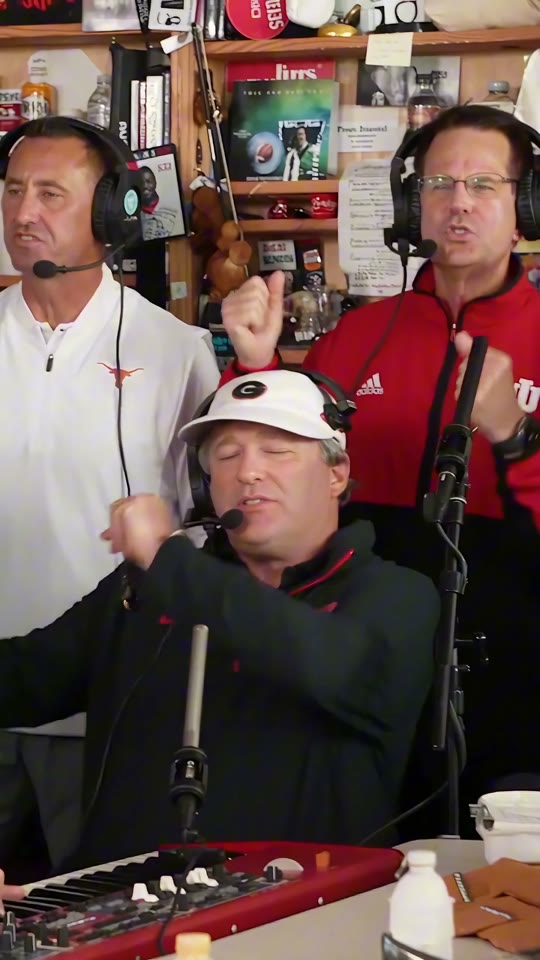
Continue a visible outfit into a full look for concepts and mood boards.
How to Make a Picture Full Body
- 01
Upload a cropped portrait
Use a headshot, chest-up, or waist-up image.
- 02
Generate the full image
Ikat adds the rest of the person and the surrounding scene.
- 03
Review and download
Check the body, outfit, and background before saving the result.
What AI Adds to the Photo
The original photo does not contain the missing body, outfit, shoes, or background. AI creates those details from what it can see, so review the result before using it.
Related Image Tools
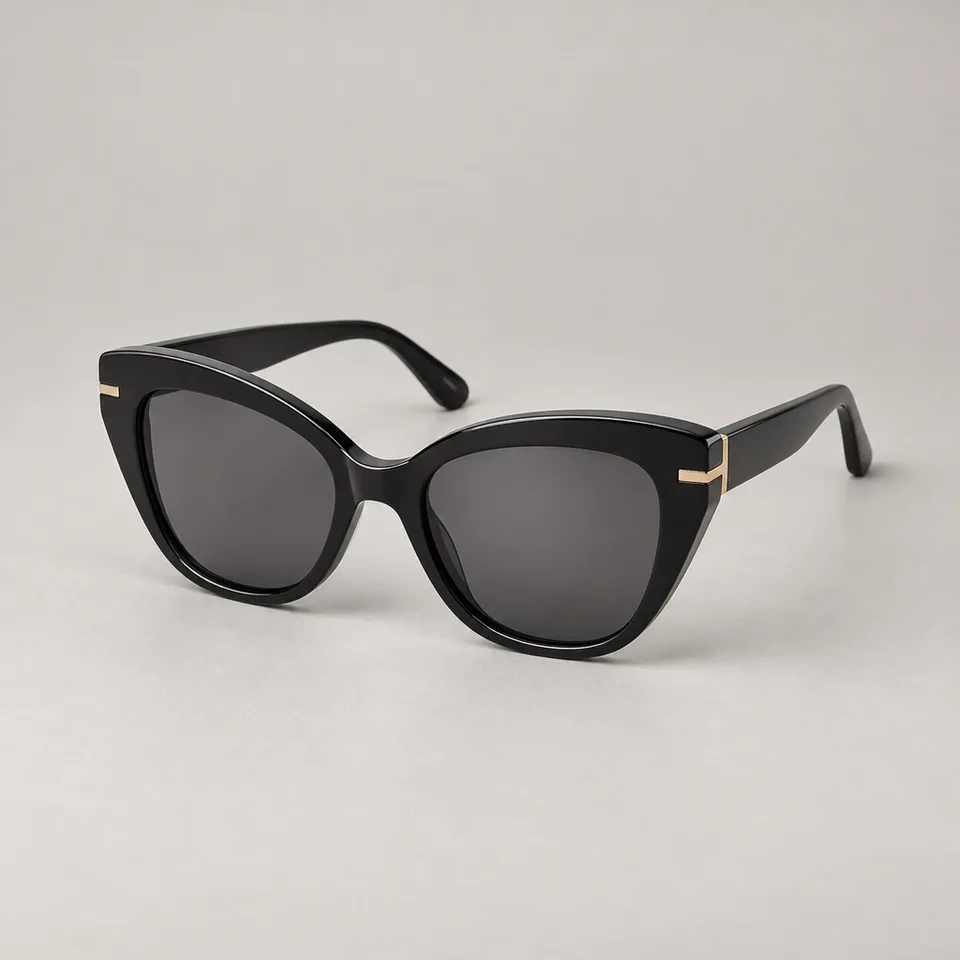 Before
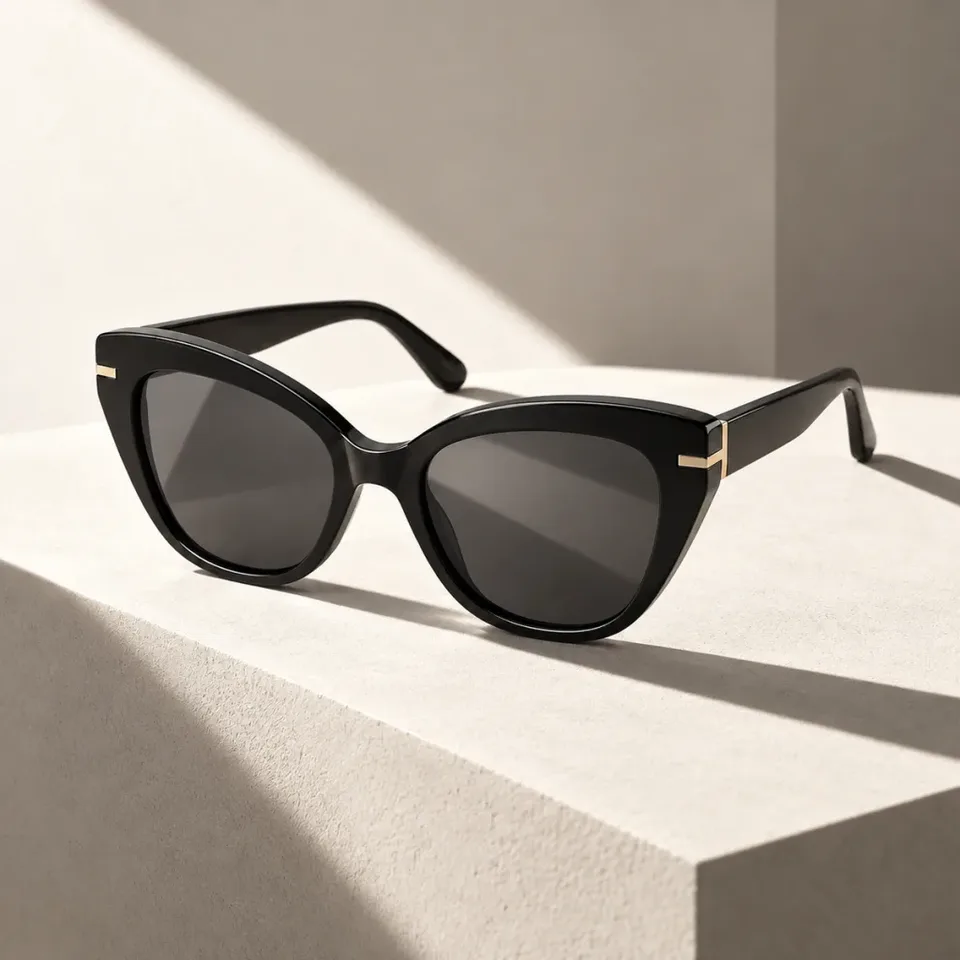 After
AfterImage to Image
Use your photo as a reference and ask Ikat for a different image edit.
Open Image to Image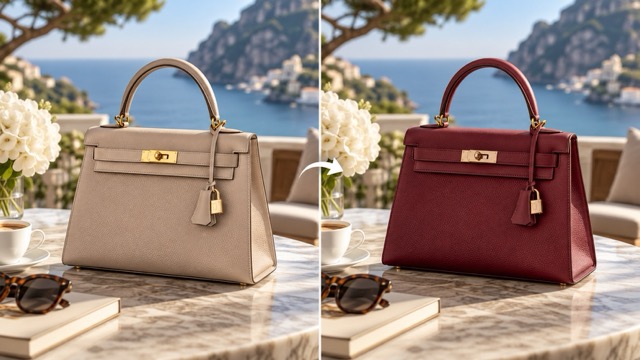
Change Color of Image
Change the color of clothes, products, or another visible object in the same image.
Try Recoloring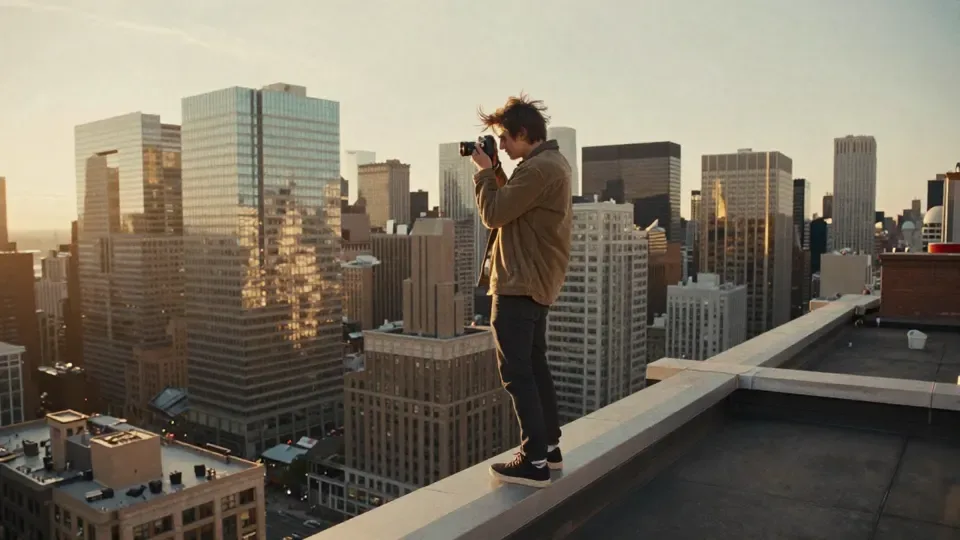 Your photoVideo
Image to Video
Animate the completed full-body image as the starting frame for a video.
Animate Image
Full-Body Picture FAQ
Still have a question? Write to support@ikat.app.
Can AI turn a headshot into a full-body image?
Yes. Upload a clear headshot or cropped portrait and Ikat can generate a wider image with a full body and surrounding scene.
Will the AI keep the same face?
The original portrait guides the result, but AI can still change small facial or styling details. Review the output before using it as a final asset.
What kind of photo works best?
Use a clear portrait where the face or character, clothing, pose, and lighting are easy to see.
Is the generated body the person's real body?
No. Anything outside the original crop is not in the source image. AI creates those missing details from the visible portrait and your prompt.
Turn Your Portrait Into a Full-Body Image
Upload a cropped portrait and generate a complete full-body image in Ikat.
Generate Full-Body Image